Printer Troubleshooting Guide
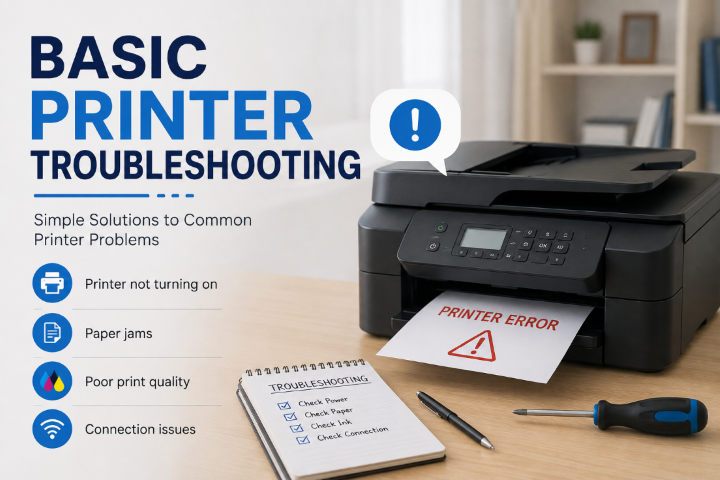
Reboot the Printer
Whether the printer won’t print at all, or is printing incorrectly (wrong tray/paper source, distorted/garbled print, wrong layout, etc.), always start here:
- Turn the printer off using its power switch.
- Wait 10 seconds, then turn it back on.
- Give it a minute to fully start up before trying to print again.
Check the Paper
- Make sure the paper tray isn’t overloaded – don’t fill it past the max-fill line.
- Remove the paper stack, fan it (flick through the edges) to separate the sheets, then reload it. This prevents jams caused by pages sticking together.
- Check the paper guides (the sliding plastic tabs) in the tray sit snugly against the edges of the paper. If they’re too loose or too tight, the printer can misread the paper size and jam or print incorrectly.
Using the Manual Feed Tray?
If you’re feeding paper through the manual/multi-purpose tray, make sure the side guides are pushed in firmly against both edges of the page. Loose guides are the most common cause of skewed prints and jams in this tray.
If it Jams, don’t rip the Page Out!
Pulling paper against the normal path and direction of paper can damage the rollers and gears in the printer. Instead, remove the necessary covers and toner to access the jam efficiently to remove it cleanly. A small piece of paper torn off and left in the printer will cause continuous jamming.
Check the Cables
- Confirm both ends of the USB or Network Cable are firmly plugged in, at the printer and at the wall/switch/computer/phone.
- Unplug each end and plug it back in, even if it looks connected. A loose connection isn’t always obvious.
Print a Status Page
Most printers can print a status/configuration page from their control panel (usually under a Menu → Report/Status option). This confirms the printer’s internals are working and shows useful network details (IP address, etc.) that we’ll need if the issue continues.
A few other Quick Checks
- Check the display panel for any error message or blinking light, and note down exactly what it says.
- Make sure toner/ink isn’t empty and all covers/trays are fully closed.
- Try printing from a different computer or device, if one is available. This tells us if the issue is the printer or just one PC.
- If printing over Wi-Fi, confirm the printer still shows as connected to your network in its display panel.